
A dash cam for your truck can document crashes, road hazards, loading-yard incidents, and disputed events, but the camera does not prevent collisions or prove fault by itself. The right setup depends on your truck, routes, coverage needs, electrical system, storage requirements, and the laws that apply where you operate.
Quick Answer
For most trucks, choose a dash cam with clear 2K or 4K front video, strong low-light performance, GPS, loop recording, a high-endurance memory card, and power protection. Add cabin, rear, or side cameras only when your routes, cargo, fleet policy, or claim history justify the extra coverage.
Key Takeaways
- Image quality depends on the sensor, bitrate, lighting, lens, and exposure control—not resolution alone.
- Use a high-endurance memory card and confirm how many hours your exact camera and settings can store.
- Hardwiring can enable parking mode, but the kit must match the truck’s electrical system and include battery protection.
- Mount the camera outside the driver’s sight lines and follow federal, state, local, and company requirements.
- For fleets, cameras work best when paired with clear driver notice, fair access rules, secure storage, and constructive coaching.
At a Glance
| Time Required | About 30–90 minutes for a plug-in installation; longer for hardwiring or external rear and side cameras |
| Difficulty | Easy for a plug-in front camera; moderate to advanced for fuse-box hardwiring and multi-camera routing |
| Tools Needed | Microfiber cloth, trim tool, cable clips or ties, flashlight, camera manual, vehicle manual, and a circuit tester or multimeter when hardwiring |
| Cost | Varies by camera count, storage, LTE or cloud service, hardwire kit, cable length, and professional installation |
Why Truckers Use Dash Cams for Safety and Documentation
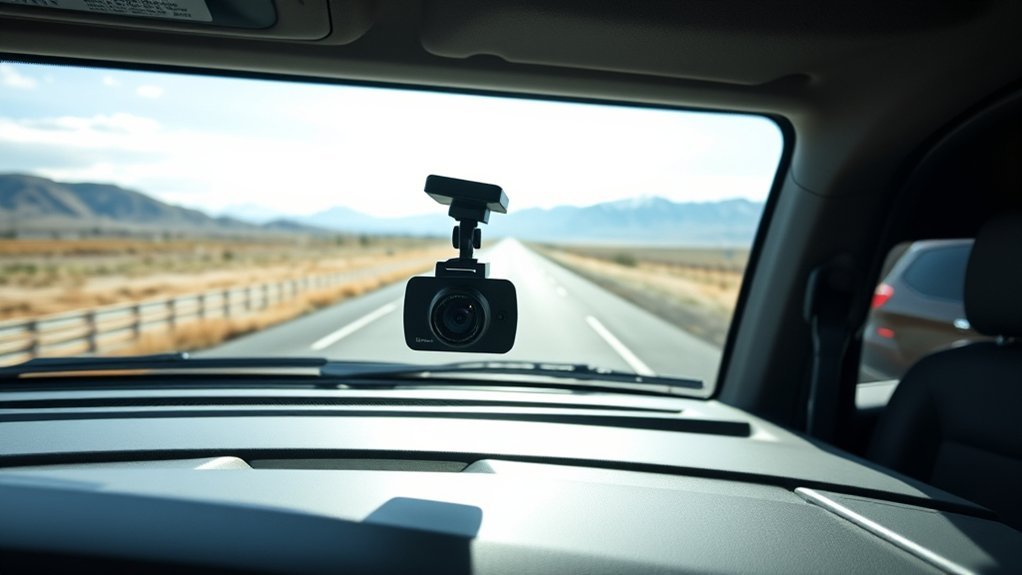
A truck dash cam creates a time-stamped record of what the camera could see before, during, and after an incident. That footage may help explain lane position, traffic signals, sudden braking, road conditions, cargo-yard activity, or the actions of another road user.
Footage is best treated as one piece of evidence. It may support an insurance claim, police report, safety review, or legal case, but it does not automatically determine fault. The view may be blocked, the plate may be unreadable, the clock may be wrong, or important activity may occur outside the camera’s field of view.
FMCSA’s 2024 methodology estimates an average large-truck crash cost of $46,765 without injury, $383,168 with injury, and about $14.58 million when fatal, expressed in 2022 dollars.
Those figures come from the Federal Motor Carrier Safety Administration’s crash-cost methodology. They show why reliable documentation and a strong safety program matter, but they do not mean a dash cam will prevent or recover every loss.
For fleets, video can also add context to harsh-braking, speeding, swerving, and seat-belt events. However, the camera alone is not the full safety program. The National Institute for Occupational Safety and Health found that risky driving declined when video-supported monitoring was paired with timely supervisory coaching. Feedback without that coaching did not produce the same overall improvement.
What a dash cam can help document
- Crashes, near misses, road debris, and unsafe lane changes
- Traffic-light status, weather, construction zones, and roadway conditions
- Loading-dock, terminal, parking-lot, and fuel-island incidents
- Vandalism or impacts while parked when parking mode is enabled
- Cab activity when a lawful, disclosed driver-facing camera is used
- Events involving the tractor, trailer, rear doors, or side blind zones when extra cameras are installed
Essential Features for Choosing a Truck Dash Cam
The best dash cam for a truck is not always the model with the largest resolution number. Compare the complete recording system, including the image sensor, total bitrate, night performance, storage, operating temperature, power requirements, and ease of retrieving a clip.
| Feature | Why It Matters | What to Check |
|---|---|---|
| Front image quality | Helps preserve signs, lane markings, vehicle movement, and possible plate detail | 2K or 4K resolution, a strong sensor, sufficient bitrate, HDR or WDR, and realistic sample footage |
| Night performance | Trucks often operate before sunrise, after dark, and in poorly lit yards | Low-light samples, headlight-glare control, HDR, and infrared illumination for a cabin camera |
| Field of view | Affects side coverage and the apparent size of distant details | A view wide enough for adjacent lanes without making vehicles and plates unnecessarily small |
| Camera channels | Determines whether the system records only forward or also records the cab, rear, trailer, or sides | Front-only, front-and-cabin, front-and-rear, or a multi-camera fleet system |
| Storage support | Controls how long footage remains before loop recording overwrites it | Maximum card size, high-endurance card requirements, total bitrate, event allocation, and card-health alerts |
| GPS and time data | Adds location, route, speed, and time context | Reliable satellite lock, correct time zone, and the option to control which data appears on exported video |
| Parking mode | Can record impacts or motion after the engine is switched off | Buffered event recording, time-lapse or low-bitrate modes, timer control, and low-voltage cutoff |
| Truck power compatibility | An incompatible kit can damage the camera, drain batteries, or create an unsafe installation | Whether the camera and hardwire kit support the truck’s 12- or 24-volt system |
| Heat and cold tolerance | A parked cab can become much hotter or colder than the outdoor air | Published operating and storage ranges, heat shutdown behavior, and a supercapacitor-based design when practical |
| Connectivity | Affects how quickly a driver or fleet manager can retrieve footage | Wi-Fi, Bluetooth, LTE, cloud access, cellular coverage, subscription fees, and export speed |
| Fleet controls | Supports consistent settings, access control, and evidence retention across several trucks | Administrator roles, audit logs, driver access, retention rules, encryption, remote health checks, and tamper alerts |
Pro Tip: Watch original day and night sample files before buying. Streaming video on a product page may be compressed and may not show the actual detail available in the saved recording.
Comparing Dash Cam Types for Different Trucking Needs
Choose the number and direction of cameras based on the incidents you need to document. More channels provide more context, but they also increase installation time, storage use, cable routing, maintenance, and privacy responsibilities.
| Camera Type | Best For | Main Tradeoff |
|---|---|---|
| Front-facing | Owner-operators who mainly need a record of traffic, signals, and the roadway ahead | Does not show the driver, rear, trailer doors, or side blind zones |
| Front and cabin | Fleets that use disclosed video for seat-belt, distraction, fatigue, or coaching reviews | Creates greater privacy, audio-consent, access, and employee-relations obligations |
| Front and rear | Straight trucks, pickups, work trucks, and vehicles with a practical rear-window view | A rear windshield camera may not work for a long tractor-trailer combination |
| Weatherproof external rear or side cameras | Box trucks, dump trucks, service bodies, trailers, and vehicles with limited rear visibility | Requires longer cables, weather-sealed connections, careful routing, and regular lens cleaning |
| Multi-camera fleet system | Carriers that need side, rear, cabin, remote health, event alerts, and centralized retrieval | Higher hardware, data, subscription, storage, training, and privacy costs |
Standalone versus cloud-connected systems
A standalone camera stores video locally on a memory card. It usually costs less and can work without cellular service, but someone must access the truck or remove the card to retrieve footage.
A cloud-connected system may upload event clips, report camera health, show vehicle location, and let authorized staff review footage remotely. Before choosing one, check cellular coverage, monthly data limits, video retention, encryption, administrator permissions, export options, and what happens if the subscription ends.
Note: A camera with driver-monitoring or artificial-intelligence features may create more data than ordinary video. Review how alerts are generated, how long biometric or behavioral data is kept, and who can challenge an incorrect event classification.
How Much Dash Cam Storage Does a Truck Need?
Recording time is controlled by the camera’s combined bitrate, not the memory-card label alone. A front camera recording at a high bitrate can use more storage than two lower-bitrate cameras. Resolution, frame rate, codec, audio, event reservations, and parking mode also affect retention.
As a rough calculation, a system recording at a combined 20 megabits per second would fill 128GB in about 14 hours before allowing for formatting overhead and reserved files. A higher-bitrate multi-camera system will retain less time, while a lower-bitrate system will retain more.
Manufacturer figures should control your final estimate. For example, an official dual-channel BlackVue recording-time table lists about 7 hours 20 minutes to 18 hours 40 minutes on a 128GB card, depending on the selected quality and bitrate.
Choose a high-endurance memory card
Dash cams continuously write and overwrite large video files. Use a high-endurance card that appears on the camera manufacturer’s compatibility list. A general-purpose card may work at first but can wear out quickly under constant recording.
- Use the capacity and speed class supported by the exact camera model.
- Format the card in the camera before first use and whenever the manufacturer recommends it.
- Turn on card-error or camera-health alerts when available.
- Replace the card when errors become frequent, files are corrupted, or the camera reports that the card has reached the end of its life.
- Carry a tested spare card in a clean protective case.
Understand loop recording and event locking
Loop recording overwrites the oldest unprotected files when the card is full. An impact sensor or manual button may protect an event clip, but protected storage is limited. Once that area fills, the camera may overwrite old events, stop protecting new events, or require manual cleanup, depending on its settings.
Pro Tip: Export an important clip as soon as it is safe to do so. Keep the original file unchanged, save a second working copy, and document the date, time zone, truck, camera, and person who retrieved it.
How to Install a Truck Dash Cam for Reliable Recording
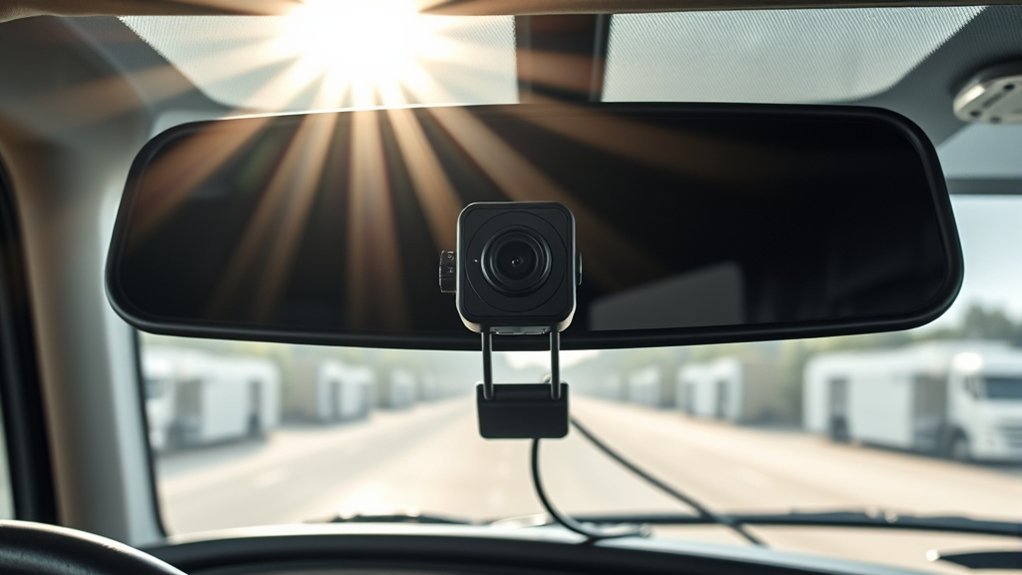
A correct installation keeps the view clear, protects the wiring, and helps the camera record consistently. Read both the dash-cam manual and the truck’s owner or service information before removing trim or connecting power.
Warning: Do not route a cable across a side-curtain airbag, steering component, pedal area, defroster vent, mirror controls, or driver sight line. Never tap an unknown safety-critical circuit. Use a qualified installer when you cannot confirm the truck’s voltage, fuse function, grounding point, airbag path, or accessory-power requirements.
1. Test the camera before mounting it
Insert the approved memory card, connect every camera, power the system, and confirm that all channels record. Check the display or app for focus, firmware updates, microphone settings, GPS status, and card errors.
2. Choose a legal mounting position
Place the forward camera high enough for a clear road view but outside the driver’s normal sight line. Confirm that the wipers clean the part of the windshield seen by the lens. Avoid heavy tint bands, inspection stickers, antenna patterns, mirror housings, and areas that create glare or reflections.
For a federally regulated commercial motor vehicle, qualifying vehicle safety technology may be mounted within either the permitted upper or lower zone of the windshield’s wiper-swept area and must remain outside the driver’s sight lines. The exact federal dimensions are covered in the legal section below.
3. Clean, attach, and aim the camera
Clean and dry the glass before applying an adhesive mount. Hold the camera in position first so you can check the view. Aim the lens so the road fills most of the frame with a smaller portion of sky and dashboard. Too much sky can make the roadway appear dark, while too much dashboard can reduce useful distance detail.
4. Route the cables safely
Leave enough slack near adjustable mirrors, moving mounts, doors, and hinged panels. Use the trim path recommended by the vehicle and camera manufacturers. Keep wiring behind the airbag rather than over its deployment path, and secure the cable so it cannot fall into the driver’s view or controls.
External rear and side cameras need protected routing away from exhaust heat, sharp edges, pinch points, moving suspension parts, and exposed connectors. Use weatherproof pass-throughs and grommets where required.
5. Select plug-in power or hardwiring
A plug-in accessory outlet is the simplest option and is easier to reverse. Confirm whether that outlet switches off with the ignition. An always-powered outlet may continue running the camera and discharge the truck batteries.
Hardwiring can provide a cleaner installation and enable parking mode on compatible systems. Use only a hardwire kit rated for the truck’s 12- or 24-volt electrical system. A parking-mode installation should include an adjustable low-voltage cutoff or another approved battery-protection method.
When connecting at a fuse panel, identify the required switched and constant circuits with the vehicle information and a suitable tester. Use the correct fuse-tap type and fuse ratings, preserve the original protected circuit, and connect ground only at an approved metal grounding point.
6. Configure the recording settings
- Set the correct date, local time, time zone, daylight-saving setting, and vehicle identification.
- Choose the resolution and bitrate that balance image quality with required retention time.
- Set impact sensitivity low enough to avoid filling storage with normal bumps but high enough to capture meaningful events.
- Decide whether speed, coordinates, driver identification, and audio should appear in saved footage.
- Configure parking-mode timer and voltage cutoff settings for the truck and duty cycle.
- Change default Wi-Fi, cloud, and administrator passwords.
7. Verify the finished installation
Record a daytime test drive, a night drive, and a parked test. Review the original files on a larger screen. Confirm that signs are readable, headlights do not overwhelm the image, every channel is correctly oriented, the microphone setting is lawful, GPS data is accurate, and no trim or cable blocks an airbag or driving control.
Dash Cam Legalities for Trucking
There is no single statement that resolves every truck dash-cam installation. Federal commercial-vehicle rules, state windshield laws, audio-recording laws, privacy rules, employment requirements, lease terms, and company policies may all apply.
Note: This section provides general information, not legal advice. Interstate carriers and fleets that record drivers should have their mounting, notice, retention, and access practices reviewed for the jurisdictions in which they operate.
Federal windshield mounting for commercial motor vehicles
Under current 49 CFR 393.60(e), qualifying vehicle safety technology may be mounted:
- No more than 8.5 inches below the upper edge of the area swept by the windshield wipers; or
- No more than 7 inches above the lower edge of the area swept by the windshield wipers; and
- Outside the driver’s sight lines to the road, highway signs, and traffic signals.
The federal rule applies to qualifying technology in covered commercial motor vehicles. State rules may still matter, especially for mounting shapes, corners, center areas, airbag zones, or vehicles outside the federal rule’s scope. Check the laws for the states and local areas in which the truck operates.
Cabin audio and consent
A driver-facing camera may also record conversations. Federal law generally provides an exception when one party to a communication consents, but some states impose stricter requirements. Review 18 U.S.C. §2511 together with the law of every relevant state.
When there is doubt, disable audio or obtain clear written notice and consent before recording. A small sticker may help provide notice, but it may not satisfy every legal or employment requirement by itself.
Driver-facing video and sleeper privacy
Do not aim a camera into a sleeper berth, changing area, restroom, or another space where a person would reasonably expect privacy. Fleets should explain:
- Which cameras and microphones are installed
- When they record and what triggers an upload
- Whether live viewing is possible
- Who may review, download, or share footage
- How long routine and event video is retained
- How a driver may report or challenge an incorrect event
- How footage may be used for coaching, discipline, claims, litigation, or law enforcement
Cloud security and data access
Video may contain faces, voices, locations, customer sites, security procedures, license plates, and cargo information. Use unique passwords, multi-factor authentication when available, limited administrator roles, prompt account removal for former staff, encryption, and a written retention schedule.
Avoid sharing a public clip before a carrier, insurer, attorney, or law-enforcement agency has reviewed whether publication could affect a claim, reveal private information, violate company policy, or expose protected customer data.
Creating a Fair Fleet Dash Cam Policy
A written policy helps drivers understand that the system has defined safety and documentation purposes. It also reduces inconsistent handling of footage.
Policy points to define
- The safety problems or claim issues the camera program is designed to address
- Whether recording is continuous, event-triggered, parked, live, or driver-facing
- The events that create alerts and how those thresholds are reviewed
- Who receives alerts and how quickly a driver receives coaching
- Normal and incident-based retention periods
- Rules for downloading, forwarding, editing, and publicly posting footage
- How personal use, off-duty operation, sleeper time, and team-driver situations are handled
- How drivers can access relevant clips and dispute inaccurate classifications
Use video to review the full event rather than one short alert. A hard-braking clip may show unsafe following distance, but it may also show a driver successfully avoiding a sudden hazard. Coaching should consider the complete context.
What to Do With Dash Cam Footage After a Crash
- Prioritize safety. Stop in a safe location when possible, call emergency services when needed, and follow company reporting procedures.
- Protect the event. Use the camera’s save button only when it is safe. Do not operate the app while driving.
- Prevent overwriting. Switch off or remove power only when appropriate, or export the clip promptly according to the camera manual.
- Preserve the original. Do not trim, filter, annotate, recompress, or rename the only original file.
- Create a working copy. Use a copy for viewing, email, or markup while the original remains stored securely.
- Document retrieval. Record who exported the file, when it was exported, the truck and camera involved, and where the original is stored.
- Share carefully. Provide footage to the carrier, insurer, attorney, or investigating authority through an approved secure method.
- Do not post impulsively. Public posting can expose private information or complicate a claim or investigation.
Dash Cam Maintenance and Troubleshooting
Perform a regular recording check
Do not assume a camera is recording because an indicator light is on. Review sample clips on a routine schedule and after firmware, card, windshield, electrical, or camera changes.
- Confirm every channel records and plays with sound only when audio is intended.
- Check the date, time, time zone, GPS, speed display, and vehicle identification.
- Clean front, rear, side, and cabin lenses with suitable materials.
- Inspect exterior camera seals, brackets, connectors, and cable protection.
- Verify that parked recording stops at the selected timer or voltage threshold.
If footage is blurry or plates are unreadable
- Clean the windshield and camera lens inside and outside.
- Remove protective film that may remain over a new lens.
- Reduce reflections by changing the camera angle or moving bright dashboard objects.
- Check whether HDR, exposure, frame rate, or quality settings were changed.
- Review original files instead of a compressed app preview or messaging-app copy.
- Remember that no dash cam can guarantee plate capture at every speed, angle, distance, or lighting condition.
If the camera restarts, freezes, or misses clips
- Test with a manufacturer-approved high-endurance card.
- Format the card in the camera after saving needed footage.
- Inspect plugs, adapters, fuse taps, grounding points, and extension cables.
- Check for overheating, extreme cold, low voltage, or an incorrect parking cutoff.
- Update firmware only through the manufacturer’s official process.
- Replace the card or seek support if errors continue.
Frequently Asked Questions
Does insurance go down if you have a dash cam?
Usually not automatically. Progressive states that insurers generally do not offer a specific dash-cam discount. Footage may still help explain a disputed event or speed up parts of a claim. Ask your commercial insurer or agent whether any fleet-safety, telematics, or approved-equipment program applies to your policy.
Is it worth hardwiring a dash cam?
Hardwiring is useful when you need parking mode, a hidden power cable, or automatic ignition sensing. Use a kit compatible with the truck’s voltage and equipped with low-voltage protection. Professional installation is the safer choice when fuse functions, grounding, airbag paths, or the vehicle’s electrical architecture are uncertain.
Do I need to tell my insurer that I installed a dash cam?
There is no universal requirement that every driver report a basic dash cam. Check your policy or ask your agent if the system is hardwired, permanently installed, included as insured equipment, connected to a fleet telematics program, or subject to a specific policy condition.
How long does 128GB last on a dash cam?
There is no fixed duration. Recording time depends on the number of cameras, combined bitrate, resolution, frame rate, codec, audio, event storage, and parking mode. Manufacturer examples vary widely; one dual-channel 1080p system lists about 7 hours 20 minutes to 18 hours 40 minutes on 128GB. Use the recording-time chart for your exact model and settings.
Can dash cam footage be used in an insurance claim or court case?
It may be used when it is relevant and lawfully obtained, but admissibility and weight depend on the circumstances. Preserve the original file, avoid editing it, document how it was retrieved, and follow instructions from the carrier, insurer, attorney, or investigating agency.
Should a truck have a driver-facing camera?
A driver-facing camera can add context for distraction, seat-belt use, fatigue events, and coaching, but it also creates serious privacy and employment concerns. Use one only with a clear purpose, proper notice, lawful audio settings, limited access, fair review procedures, and protection for sleeper and off-duty privacy.
Can a dash cam drain a truck’s batteries?
Yes. An always-powered outlet or incorrectly configured parking mode can continue drawing power after shutdown. Use a compatible low-voltage cutoff, suitable timer, or approved auxiliary camera battery. Verify the settings under the truck’s actual operating and layover conditions.
How often should a dash cam memory card be replaced?
There is no universal replacement interval. Card life depends on card quality, temperature, capacity, total bitrate, and daily recording hours. Replace the card when the camera reports errors, clips become corrupted, recording stops, formatting fails, or the manufacturer’s health warning indicates the card is worn.
Conclusion
A well-chosen truck dash cam can provide useful documentation, faster access to incident footage, and better context for safety reviews. Focus on strong day and night image quality, reliable high-endurance storage, the right camera coverage, safe power management, and easy clip retrieval.
Install the system where it does not block the driver’s view or interfere with airbags and controls. For fleets, support the technology with clear notice, secure access, fair coaching, and a written retention policy. Most importantly, test the camera regularly so you know it is recording before an important event occurs.
Sources
- Federal Motor Carrier Safety Administration Crash Cost Methodology Report — current severity-specific large-truck crash-cost estimates.
- 49 CFR 393.60, Electronic Code of Federal Regulations — federal commercial-vehicle windshield and mounting requirements.
- NIOSH: In-vehicle Monitoring Systems — evidence and best practices for video-supported driver feedback and coaching.
- 18 U.S.C. §2511, Cornell Legal Information Institute — federal baseline for interception and consent involving oral and electronic communications.
- Progressive: Insurance Benefits of Installing a Dashcam — claim-documentation uses and the limited availability of dash-cam discounts.
- BlackVue Dual-Channel Recording-Time Manual — manufacturer example showing how bitrate and quality change 128GB recording duration.







Leave a Reply